

Download all Amazon invoices without going through every order one by one. Retrieving a single invoice is straightforward, but managing dozens or hundreds of purchases can quickly become repetitive.
In this guide, you’ll see how to download Amazon invoices manually, what changes when you need invoices from many orders, and how to automate the process when downloading them one by one is no longer practical.
How to Download an Amazon Invoice
Amazon lets you access invoices directly from your order history. The documents available can vary depending on the marketplace, seller, and type of purchase, so not every order necessarily shows exactly the same invoice options.
Download a Single Amazon Invoice
According to Amazon’s current instructions, you can retrieve an invoice from your order history.
- Sign in to your Amazon account.
- Go to Your Orders.
- Find the order you need.
- Open the Invoice option.
- Select the available invoice.
- Download or save the document.
If you only need one or two invoices, this is usually the simplest option.
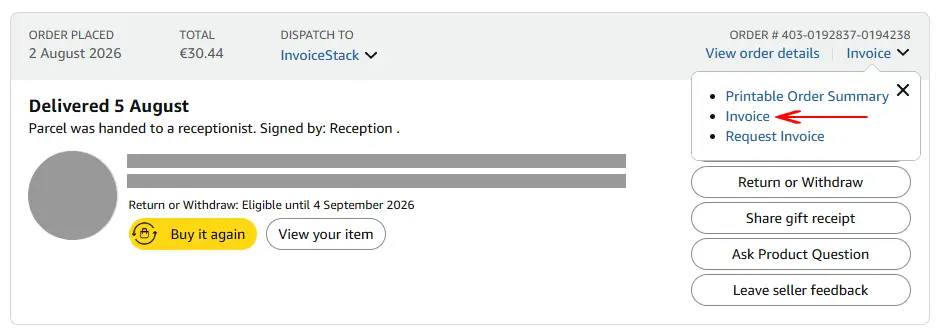
Some invoices are issued directly by Amazon, while others may come from third-party sellers. Depending on the purchase, you may also see more than one invoice-related document associated with the same order.
How to Download All Amazon Invoices
The standard order history works well when you only need a few documents. The process becomes much less convenient when you need to download all Amazon invoices from a large number of purchases.
With a standard Personal account, invoices are generally accessed through the corresponding orders. If you have 100 or 200 purchases to process, repeatedly locating each order, opening its invoice options, and saving the available document can take a significant amount of time.
This becomes particularly noticeable when you need invoices for an entire month, quarter, or year for bookkeeping or accounting. In addition to downloading the files, you may also need to rename and organize them so that individual documents can be found again later.
Amazon Business accounts may provide additional invoice and reporting tools depending on the account and marketplace. However, the workflow can still become cumbersome when you need to collect and organize a large order history or use the same process across different Amazon marketplaces.
For frequent Amazon buyers, businesses, and accountants, the amount of repetitive work involved is often the main reason to automate the process.
How to Download Amazon Invoices Automatically
If you regularly need invoices from many Amazon orders, automation can remove much of the repetitive work involved in opening orders, locating invoice documents, and saving the files individually.
Using InvoiceStack
InvoiceStack Amazon Invoice Downloader is a Chrome extension designed to process your Amazon order history and automatically download the invoices it finds.
Instead of processing every order manually, you select the Amazon marketplace and the period you want to download. InvoiceStack then scans the relevant orders and retrieves the available invoice documents.
The basic process is:
- Install InvoiceStack Amazon Invoice Downloader.
- Sign in to your Amazon account normally.
- Select your Amazon marketplace.
- Choose the period you want to process.
- Open your Amazon orders.
- Start the invoice download.
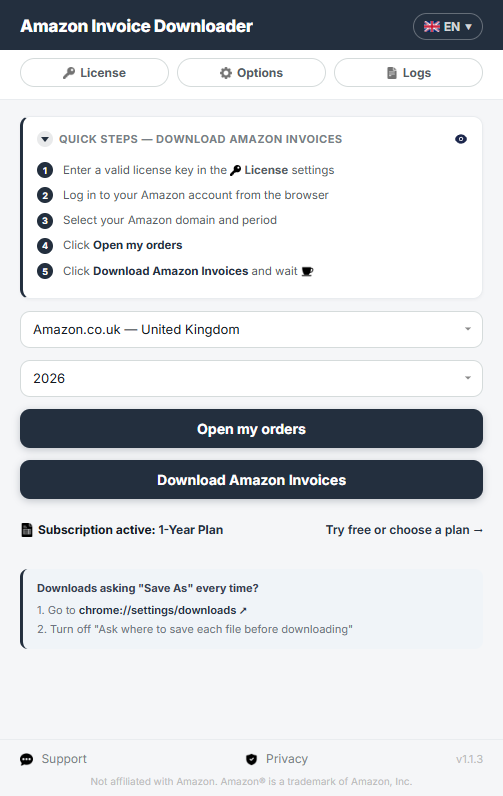
InvoiceStack supports both Personal and Amazon Business accounts and works across Amazon.co.uk, Amazon.de, Amazon.fr, Amazon.it, Amazon.es, Amazon.ie, Amazon.nl, Amazon.se, Amazon.pl, and Amazon.com.be.
You can process the last 30 days, the last 3 months, or an entire year depending on the invoices you need.
If a large download is interrupted because you close the browser, lose your connection, or decide to continue later, InvoiceStack can resume the process without starting again from the beginning.
The extension can also organize downloaded invoices using customizable filenames and date-based folder structures. This can make it easier to archive documents, locate individual invoices later, or prepare them for your accountant.
For example:
Amazon / 2026 / 08 / 403-0019274-8123454.pdf
Conclusion: The Best Way to Download All Amazon Invoices
If you only need a few invoices, downloading them manually from your Amazon order history is usually the simplest solution. You can locate the relevant order, open the invoice options, and save the available document directly.
If you need dozens or hundreds of invoices, however, repeating the same process for every purchase can take considerably more time. This is especially true when you need documents covering several months or a full year.
InvoiceStack can automate the repetitive part of the workflow by scanning the selected Amazon order history, downloading the available invoices, resuming interrupted downloads, and organizing the resulting files.
You can try InvoiceStack with your first 5 invoices for free, with no credit card required.
